
**Data Producer EDW API Onboarding**
About This Document
Section titled “About This Document”This guide serves as the primary resource for data ingestion using the new, streamlined pipeline.
- For teams currently using the Datahub ingestion pipeline: This document details the transition to and utilization of the new system, which replaces the Datahub process.
- For new teams or those new to data ingestion: This document provides all necessary instructions to begin ingesting data into Snowflake using the new pipeline.
The aim is to provide a more efficient and straightforward approach to data ingestion for all users.
Note: Data transfer to the new pipeline should be initiated gradually, avoiding a complete shutdown of the Datahub pipeline. Data flow to Datahub can be discontinued once the new pipeline’s performance is satisfactory.
Background: Understanding the Evolution of the Ingestion Process
Section titled “Background: Understanding the Evolution of the Ingestion Process”To understand the benefits and design of the current pipeline, it is helpful to consider its predecessor.
Previously, data ingestion was managed through Datahub. This process involved:
-
Creating a dataset in Datahub.
-
Selecting an ingestion type (STREAM or BATCH).
-
Receiving a space_id and folder_path from Datahub.
-
Uploading files to this designated Datahub location. These files were then processed and loaded into a Snowflake table.
-
Data was then accessible via Datahub, for download, or for use in Domo.
While robust, the Datahub process involved complexities that the current system is designed to reduce. The new pipeline simplifies this by leveraging File Service for efficient file uploads and leveraging Snowflake for powerful data consumption and querying.
Key Benefits of the New Pipeline:
- Simplified Ingestion Workflow: Offers a more streamlined path for data onboarding, reducing overall operational complexity compared to the previous system.
- Direct Integration & Powerful Analytics: Leverages File Service for uploads and Snowflake for data storage and consumption, enabling robust analytics.
How the New Pipeline Works
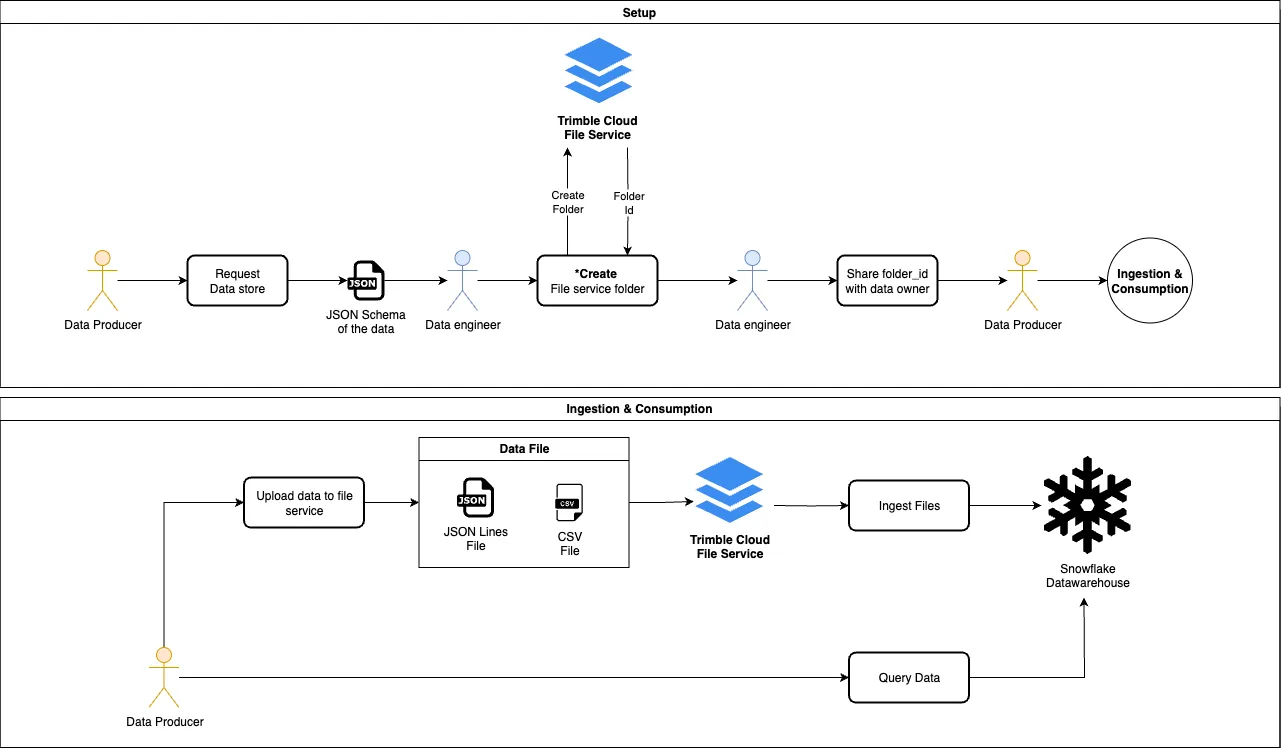
Section titled “How the New Pipeline Works”The new ingestion pipeline operates by leveraging File Service for data reception and Snowflake for its processing and consumption capabilities. Here’s a high-level overview:
- Setup: Your team requests a designated storage location within File Service from the Data Ops Data Engineering Team.
- Upload: Data files are written directly to this pre-configured File Service location.
- Detection & Transfer: Files meeting specific criteria are automatically copied to a location accessible by Snowflake.
- Ingestion & Processing (Snowflake): Snowflake consumes these files, loading and processing the data into the target table.
- Access & Consumption (Snowflake): Once ingested, the data is available within Snowflake for querying, analysis, and use by anyone with the appropriate permissions.
Prerequisites: Setting Up Your File Service Location
Section titled “Prerequisites: Setting Up Your File Service Location”Before you can upload files, a one-time setup of your File Service location is required. This is analogous to creating a dataset in the old Datahub system.
Action Required:
Contact the Data Ops Data Engg Team via email to request the setup of a new dataset. You will need to provide the following information:
- Product: The name of the product or service that produces the data.
- Target Table Names: The desired names for your tables in Snowflake.
- Source Environment(s): The environment(s) from which your data is being generated. Typically, a separate table is created for each source environment.
- Deployment Environment: The environment on snowflake in which the tables should be created, it can be either Prod or Preprod, it does not necessarily need to match your source environment.
- Access Permissions (TRN): This should be an application ID from console.trimble.com
for the associated environment.
- This application should be subscribed to the production fileservice
- JSON Schema: A comprehensive definition of the data that will be provided, used to declare the corresponding Snowflake resource. The following section will extend the format that this JSON Schema needs to have.
- Data Periodicity: The frequency at which data is generated or updated.
What You’ll Receive: The Data Ops Data Engg team will use your provided information (product name and table names) to
create a dedicated folder structure in File Service for each table. The typical folder path format is:
{product-name}-{snowflake-table-name}-{source-environment}-edw-ingest
Example: processing-operation-events-dev-edw-ingest/
Also, your json schema will be submitted to a private repository in which an automated process will be in charge of creating the required snowflake resources, including a table in which the ingested data will be stored.
The Data Ops Data Engg team will then share the following critical details with you for each table:
- The File Service space ID where the folder is located.
- The exact folder name(s).
- The corresponding folder ID(s) in File Service.
Once you have this information, you are ready to start adding files.
JSON Schema Format
Section titled “JSON Schema Format”To automatically create your snowflake resources, you’ll provide a JSON Schema. This schema serves two critical purposes: it defines the table structure for DDL generation, and it acts as a data contract for validating incoming records.
Any data that does not match this schema will not be consumed and will require correction before it can be processed. This section outlines the correct structure for defining columns, data types, and constraints.
1. Core Structure
Section titled “1. Core Structure”The JSON Schema must define a single object at its root, which represents the table itself.
-
Root Type: The schema’s top-level “type” must be “object”.
-
File Format: The “fileFormat” keyword specifies the format of the source data files. Supported values are ” json” or “csv”. This is a custom keyword for our ingestion process.
-
Columns as Properties: The “properties” keyword contains an object where each key represents a column name in the database table.
-
Required Columns (NOT NULL): The “required” array lists all column names that should be defined with a NOT NULL constraint.
-
Primary Key: the primary key of the dataset (unique identifier) should be defined. If this is a combination fields, please define all required fields to build the key.
Basic Structure:
Section titled “Basic Structure:”Below is an example of a single schema definition that will be used for both the prod and dev environments. Both environments will share the exact same fileFormat, column structure, and NOT NULL constraints.
{ "type": "object", "fileFormat": "json", "primaryKey": ["column 1", "column 2"], "properties": { "column_1": { ... }, "column_2": { ... } }, "required": ["column_1"]}2. Data Type Mapping
Section titled “2. Data Type Mapping”To define the data type for each column, use the standard JSON Schema “type” and “format” keywords. The system will map these to the appropriate SQL data types.
Here is the mapping of supported types:
| Your Desired Type | JSON Schema “type” | JSON Schema “format” |
|---|---|---|
| int | integer | (none) |
| float | number | (none) |
| boolean | boolean | (none) |
| object | object | (none) |
| array | array | (none) |
| string | string | (none) |
| date | string | date |
| timestamp | string | date-time |
Important Notes:
Section titled “Important Notes:”-
For dates and timestamps, the base “type” must be “string”, and the “format” keyword is mandatory.
-
Integer and number are the correct JSON Schema types for integers and floating-point numbers.
3. Complete Example
Section titled “3. Complete Example”For a complete example, you can refer to the following files which illustrate a schema for a Users table and corresponding valid data records.
- Example JSON Schema for a Users table
{"title": "Users Table","type": "object","fileFormat": "json","properties": {"user_id": {"type": "integer"},"username": {"type": "string"},"email": {"type": "string"},"birth_date": {"type": "string","format": "date"},"is_active": {"type": "boolean","default": true},"created_at": {"type": "string","format": "date-time"},"last_login": {"type": "string","format": "date-time"},"profile_data": {"type": "object"}},"primaryKey": ["user_id"],"required": ["user_id","username","email","is_active","created_at"]}
- Example of a Valid JSON Record
{"user_id":101,"username":"jane_doe","email":"jane.doe@example.com","birth_date":"1995-05-10","is_active":true,"created_at":"2024-01-15T10:00:00Z","last_login":"2025-07-14T21:29:00Z","profile_data":{"theme":"dark","notifications":{"email":true,"sms":false}}}{"user_id":102,"username":"john_smith","email":"john.smith@example.com","birth_date":"1992-11-23","is_active":true,"created_at":"2024-02-20T11:30:00Z","last_login":"2025-07-14T19:45:10Z","profile_data":{"theme":"light","notifications":{"email":true,"sms":true}}}{"user_id":103,"username":"sara_jones","email":"sara.jones@example.com","birth_date":"1998-01-30","is_active":false,"created_at":"2024-03-01T09:00:00Z","last_login":null,"profile_data":{"theme":"dark","notifications":{"email":false,"sms":false}}}
- Example of a Valid CSV Record
user_id,username,email,birth_date,is_active,created_at,last_login,profile_data101,jane_doe,jane.doe@example.com,1995-05-10,true,2024-01-15T10:00:00Z,2025-07-14T21:29:00Z,"{""theme"":""dark"",""notifications"":{""email"":true,""sms"":false}}"102,john_smith,john.smith@example.com,1992-11-23,true,2024-02-20T11:30:00Z,2025-07-14T19:45:10Z,"{""theme"":""light"",""notifications"":{""email"":true,""sms"":true}}"103,sara_jones,sara.jones@example.com,1998-01-30,false,2024-03-01T09:00:00Z,,"{""theme"":""dark"",""notifications"":{""email"":false,""sms"":false}}"
4. Pre-check Your JSON Schema and Sample Records
Section titled “4. Pre-check Your JSON Schema and Sample Records”Although not mandatory, it is strongly recommended to validate your JSON schema against representative sample records before submitting your schema. This helps ensure your schema accurately describes your data structure and that your records comply with the defined requirements.
You can use tools like JSON Schema Validator to perform this check.
Validation will confirm:
- The JSON schema is structurally correct.
- All required fields are present in your sample data.
- Data types in your records match the schema definitions.
This helps identify and resolve schema issues early, reducing delays in Snowflake resource creation.
Example of Successful JSON Schema Validation
Section titled “Example of Successful JSON Schema Validation”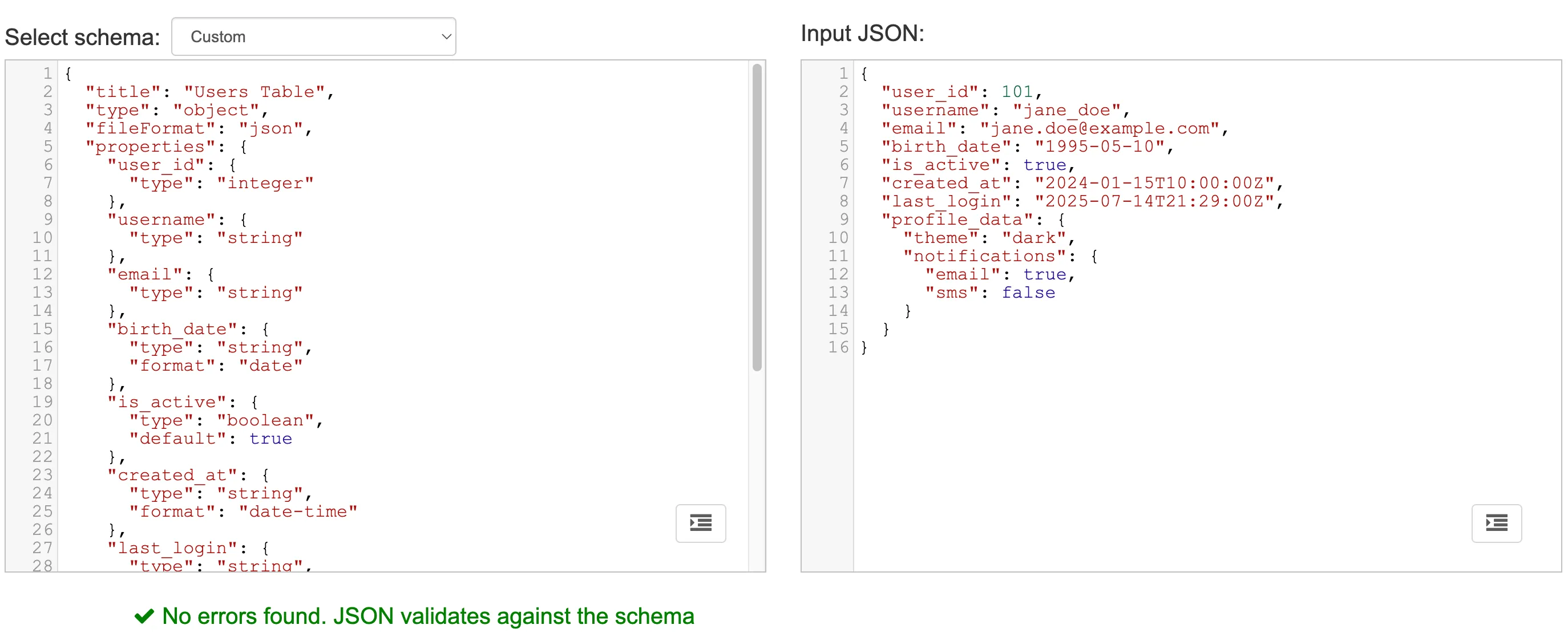
Example of Failed JSON Schema Validation
Section titled “Example of Failed JSON Schema Validation”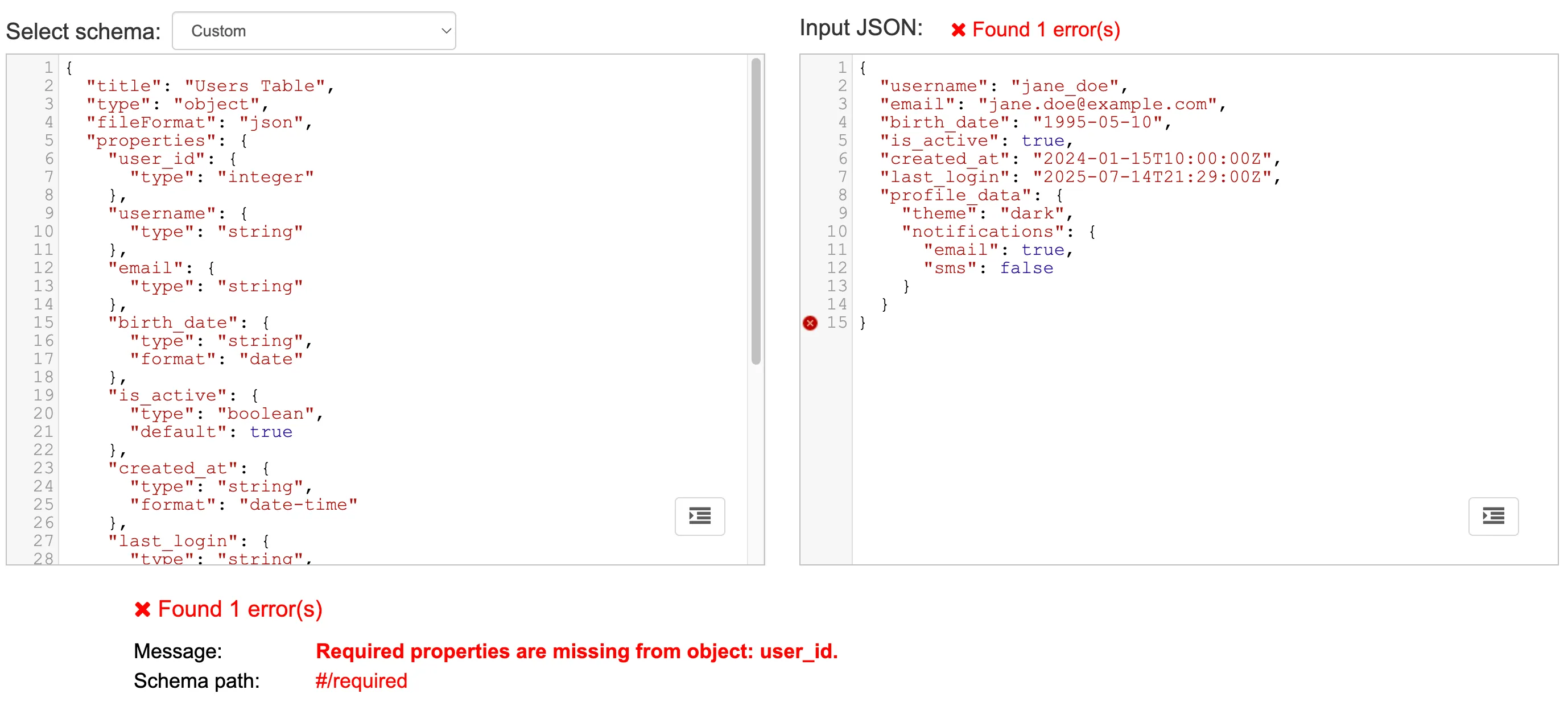
Note: JSON Schema validation tools are designed for JSON data only, so they cannot be used to validate CSV records.
How to Add Files for Ingestion
Section titled “How to Add Files for Ingestion”To ensure your files are successfully ingested, they must meet all the following requirements when uploaded to your designated File Service folder:
-
Correct Location:
-
Files must be placed directly under the folder created by the Data Ops Data Engg team (e.g., * processing-operation-events-dev-edw-ingest/yourfile.csv*).
-
Files in subfolders (e.g., processing-operation-events-dev-edw-ingest/my-subfolder/yourfile.csv) will not be processed.
-
-
File Naming Convention (Crucial):
-
The filename must end with a datetime suffix in the format:
_YYYYMMDDTHHMMSSZ-
YYYY: Four-digit year
-
MM: Two-digit month (01-12)
-
DD: Two-digit day (01-31)
-
T: Literal character ‘T’ as a separator.
-
HH: Two-digit hour in UTC (00-23).
-
MM: Two-digit minute (00-59).
-
SS: Two-digit second (00-59).
-
Z: Literal character ‘Z’ indicating UTC time.
-
-
This suffix helps prevent accidental overwrites. It’s recommended to use the timestamp of when the file is written to File Service.
-
Example: If your base filename is data and you’re uploading it on March 29, 2025, at 10:12:03 PM UTC, the full filename would be data_20250329T221203Z.csv.
-
-
File Format:
-
Files must have either a .json or .csv extension.
-
Column names are not case sensitive .JSON files should be formatted as JSON Line files, where each line is a separate, valid JSON object.
-
CSV files must include a header row for the columns.
-
Column names are not case-sensitive.
-
Other file extensions will be ignored by the pipeline (at least initially).
-
-
How to Upload:
- Use the File Service API or the SDK appropriate for your programming language to create/upload files into your designated folder.
- Usage information for File Service API is available here.
- Feel free to contact the Data Ops Data Engg team if you need assistance with this process.
Examples:
Let’s assume your designated folder is processing-operation-events-prod-edw-ingest/.
-
CORRECT (will be ingested):
-
processing-operation-events-prod-edw-ingest/operation_data_20250329T221203Z.csv
-
processing-operation-events-prod-edw-ingest/sensor_readings_20250330T080000Z.json
-
-
INCORRECT (will NOT be ingested):
-
processing-operation-events-prod-edw-ingest/data.csv (Missing datetime suffix)
-
processing-operation-events-prod-edw-ingest/archive/old_data_20250101T120000Z.csv (Located in a subfolder)
-
processing-operation-events-prod-edw-ingest/data_2025-03-29_22-12-03.txt (Incorrect suffix format and wrong file extension)
-
How to Consume Ingested Data
Section titled “How to Consume Ingested Data”Once your data has been ingested into Snowflake:
-
Request Access: Contact the Data Ops Data Engg Team to request the necessary permissions to access the specific Snowflake table(s) corresponding to your ingested data. Detailed information about getting access to these resources can be found here.
-
Query Data: After permissions are granted, data consumption is facilitated through BI Tools, snowflake shares or SQL queries. This allows you to leverage all of Snowflake’s capabilities for data analysis, reporting, and system integrations. If you are new to Snowflake and choose to use SQL queries, you can use the Snowflake startup document.