
Document Purpose
This document has been designed to provide information about the EMSv4 Support Portal.
What Is EMSv4 Support Portal?
Section titled “What Is EMSv4 Support Portal?”The EMSv4 Support Portal is a centralized, web-based platform designed to serve as the primary interface for managing technical support requests. We have created this dedicated portal to ensure that every support request is captured and addressed systematically. It provides users with a single point of contact to analyze the state of the EMS system.
Why Was It Introduced?
Section titled “Why Was It Introduced?”The EMSv4 Support Portal helps eliminate these bottlenecks to ensure that support teams can prioritize tasks effectively and provide a seamless experience for the end-users. Prior to its implementation, the EMS system could be analyzed only using Postman APIs and DB queries.
As EMS is experiencing rapid growth and expanding adoption, a robust support system is essential to meet the requests of the stakeholders. This portal also enables comprehensive auditing to maintain complete visibility across all requests, while allowing business teams to directly log in and analyze issues independently.
How Does It Work?
Section titled “How Does It Work?”When a user encounters a technical issue, they submit a ticket through JIRA by providing relevant details and attachments related to the issue. This ticket is then automatically routed to the appropriate specialist based on the category of the request.
Throughout the lifecycle of the ticket, both the user and the support specialist can communicate within the platform which helps maintain a complete audit trail of the resolution process.
The support specialist may use this portal to resolve the issues.
Benefits
Section titled “Benefits”The transition to the EMSv4 Support Portal offers several key benefits:
- Improved Tracking: Support actions can be effortlessly monitored.
- Enhanced Accountability: Detailed logs provide clear visibility into performance metrics and resolution stages.
- Access Control: You can easily manage who can access the portal.
Logging Into The EMSv4 Support Portal
Section titled “Logging Into The EMSv4 Support Portal”Perform the following steps to sign in and access the EMSv4 Support Portal.
-
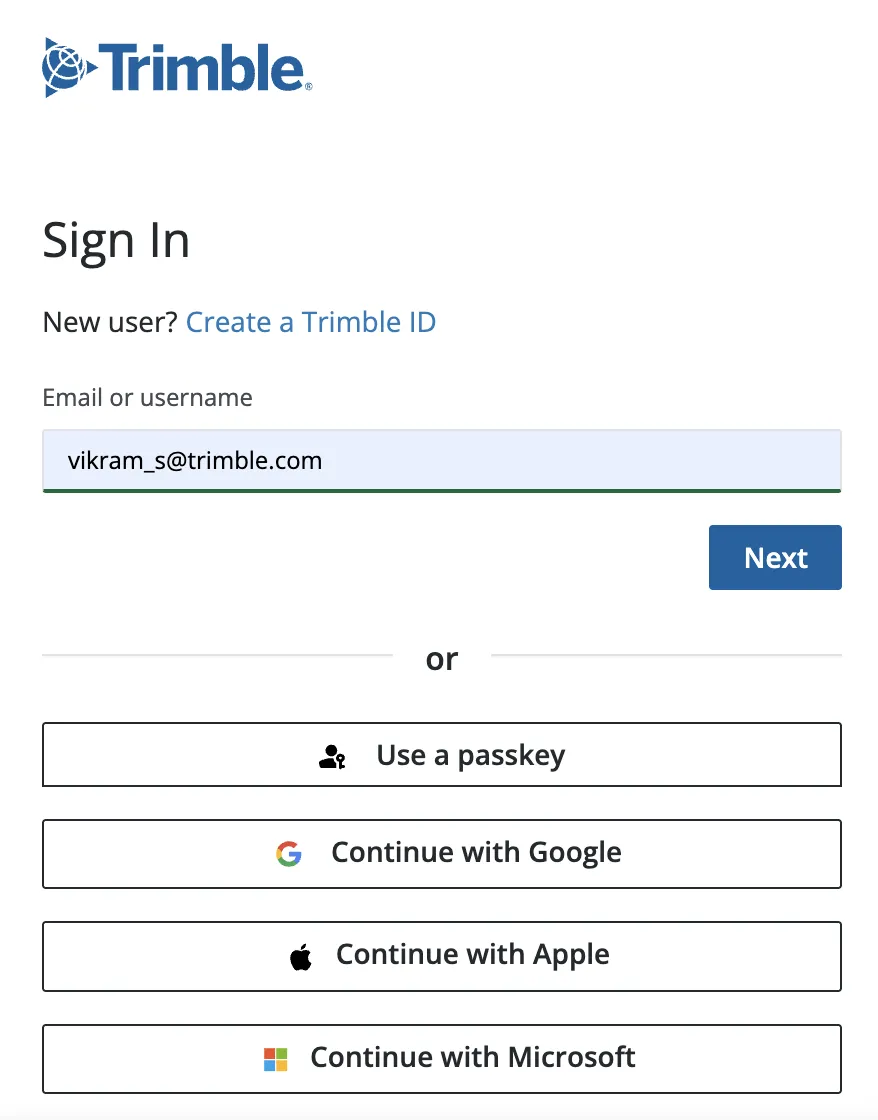
Navigate to the Sign In screen using this link.
-
Enter the user name or email ID in the Email or username field.
-
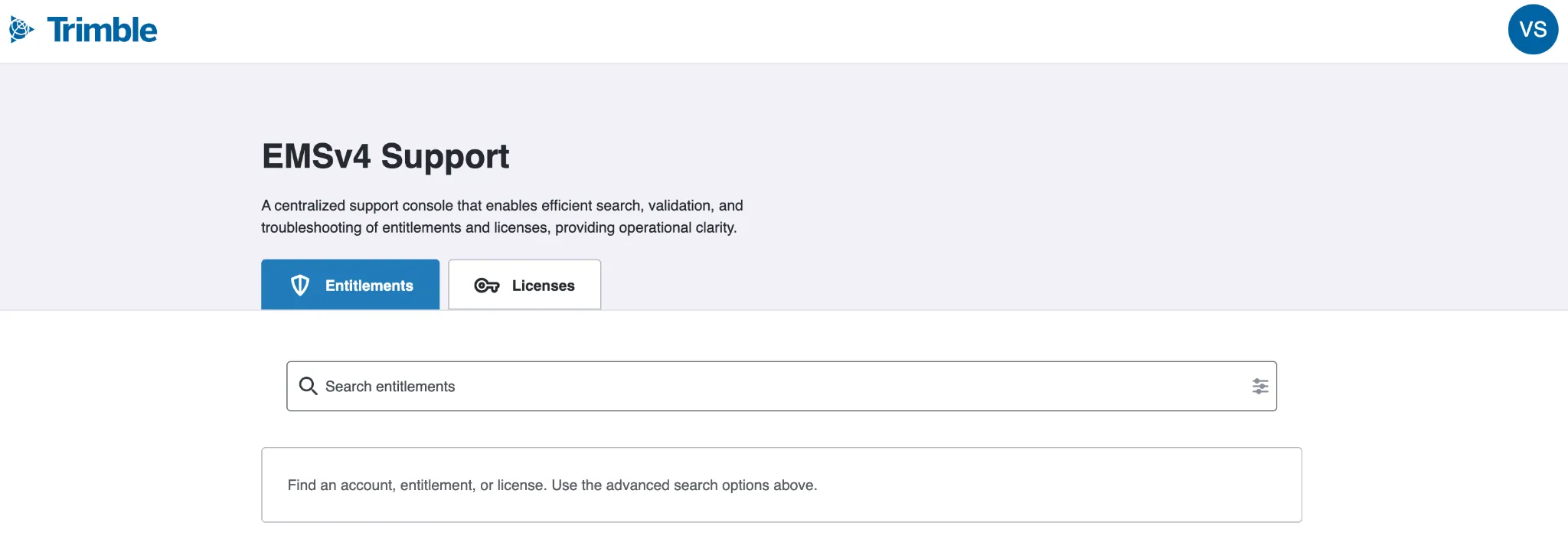
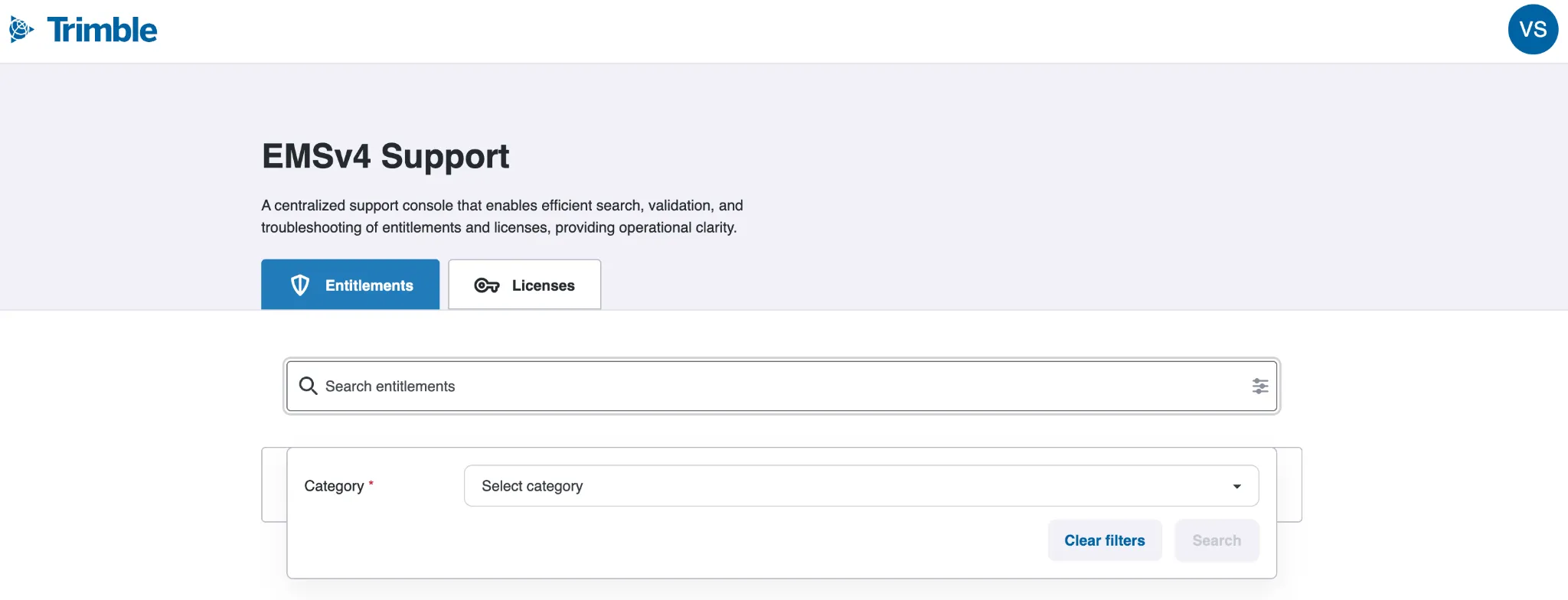
Click Next. The EMSv4 Support screen is displayed.
Note:
The Entitlements tab is selected by default. -
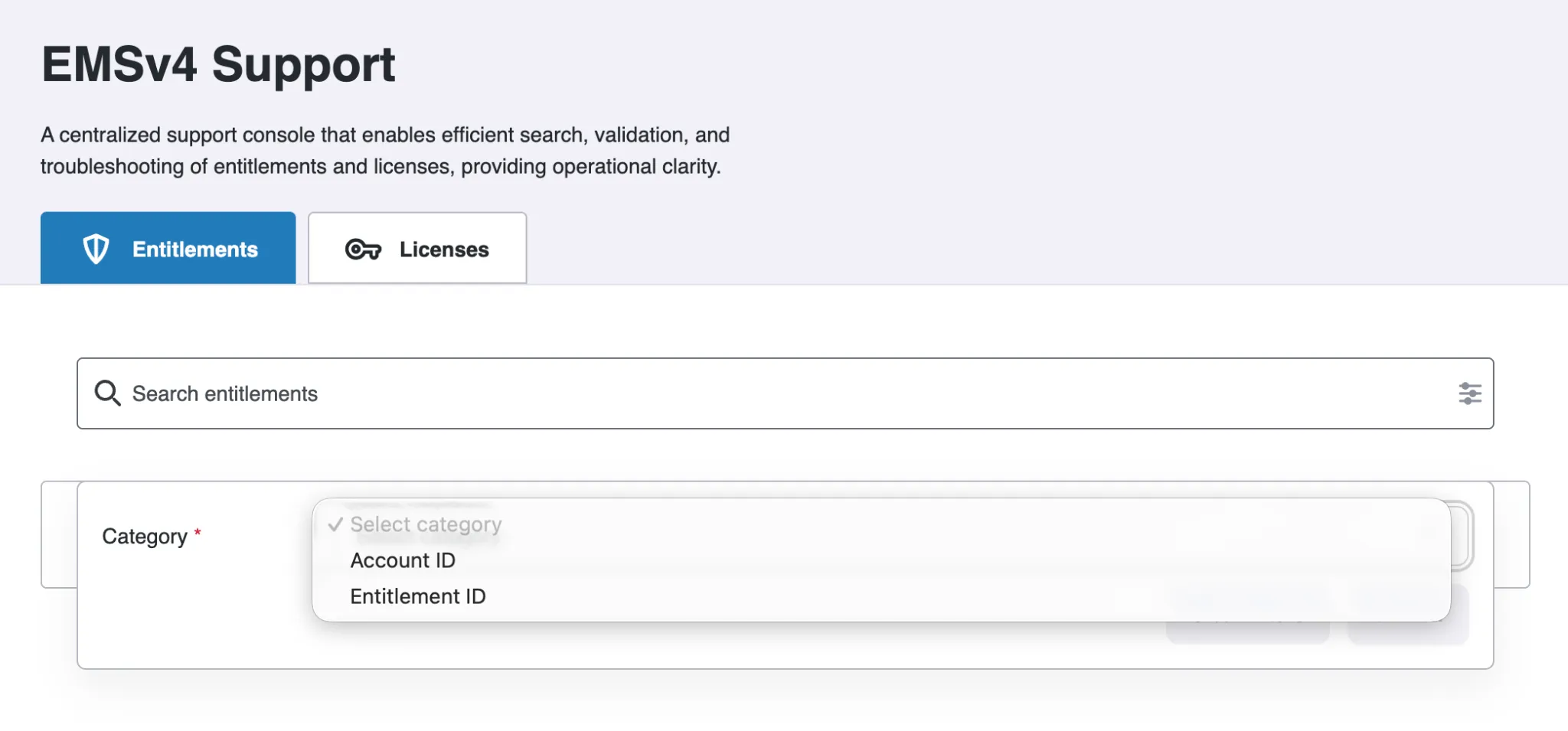
Click inside the Search entitlements field to view the Category drop-down.
-
Select the required option from the Category drop-down.
-
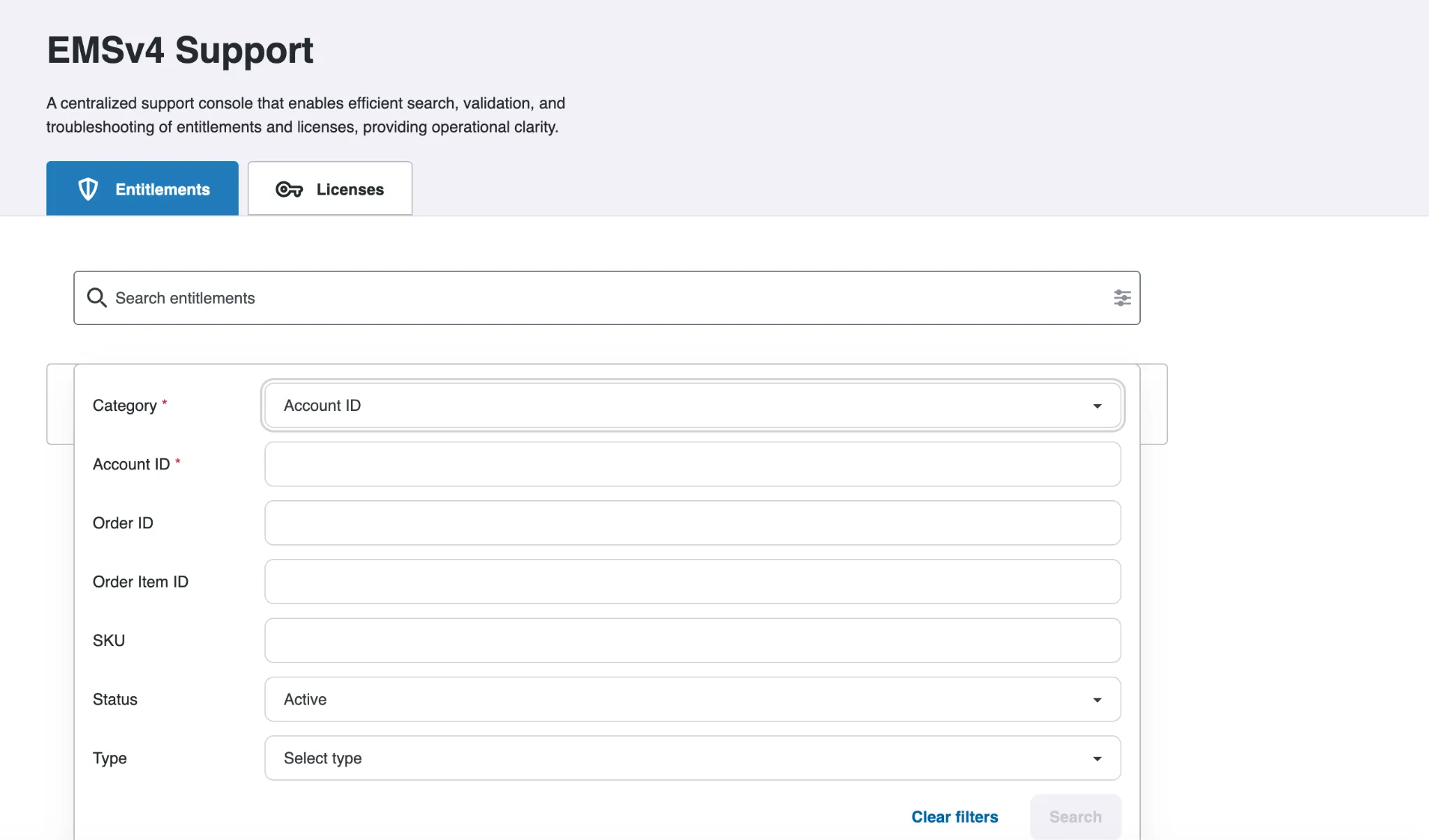
When you select Account ID from the Category drop-down, the following fields are displayed:
Note:
- The Search button will be enabled only when you enter the required information in all the mandatory fields.
- Click the Clear filters button to clear all the fields.
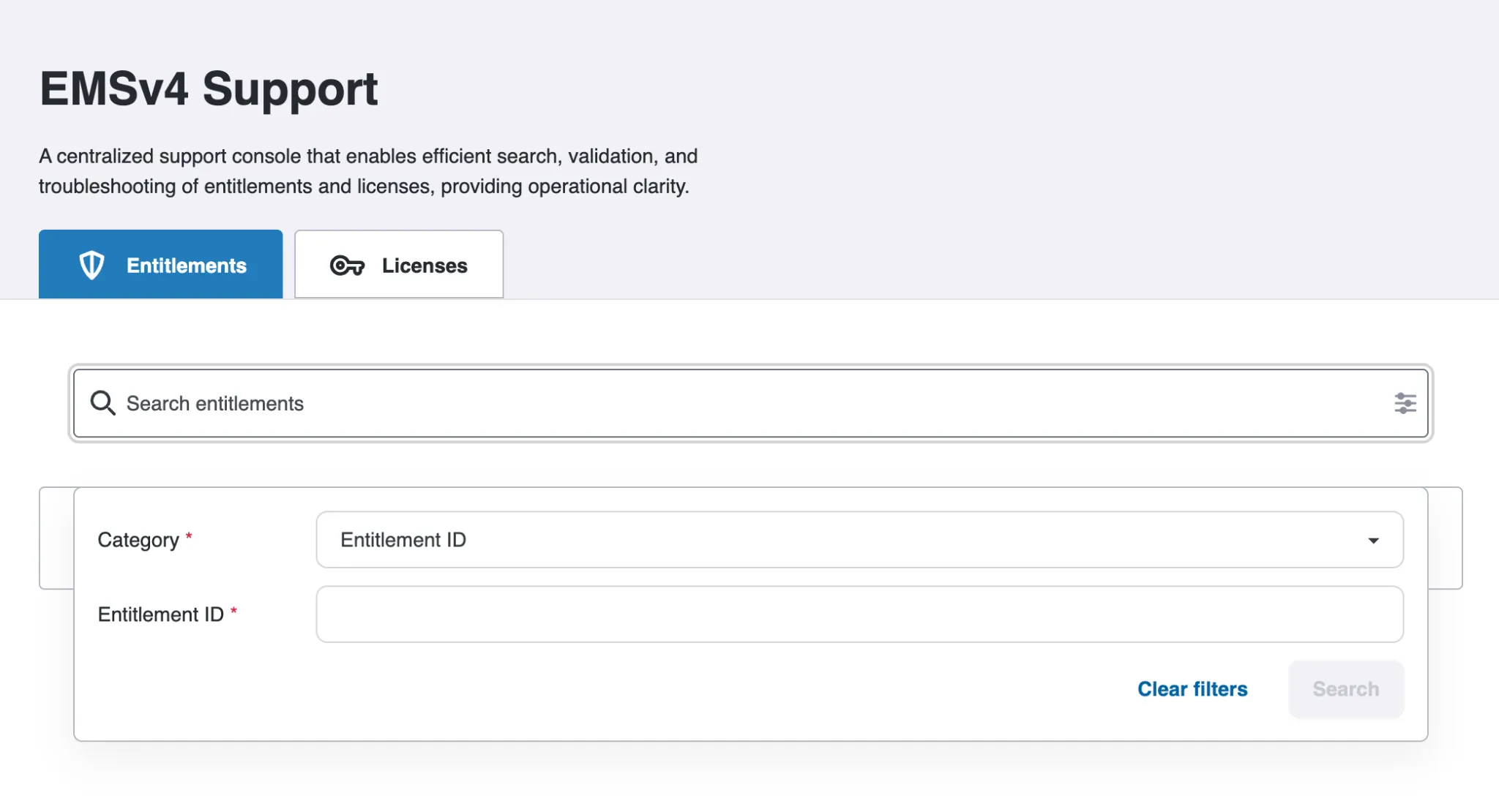
- When you select Entitlement ID from the Category drop-down, the Entitlement ID field appears on the screen.
Note:
- The Search button will be enabled only when you enter the entitlement ID in the Entitlement ID field.
- Click the Clear filters button to clear all the fields.
-
-
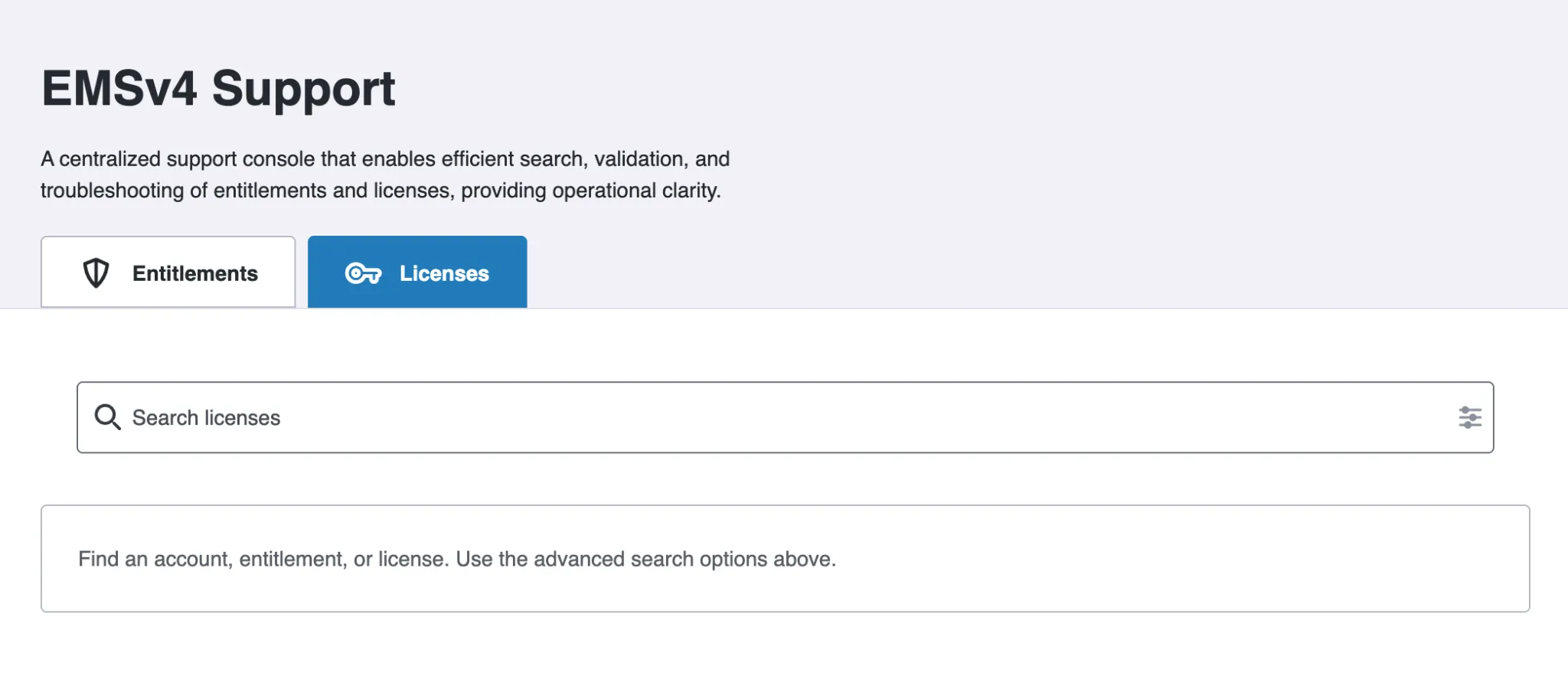
Click the Licenses tab. The following screen is displayed:
-
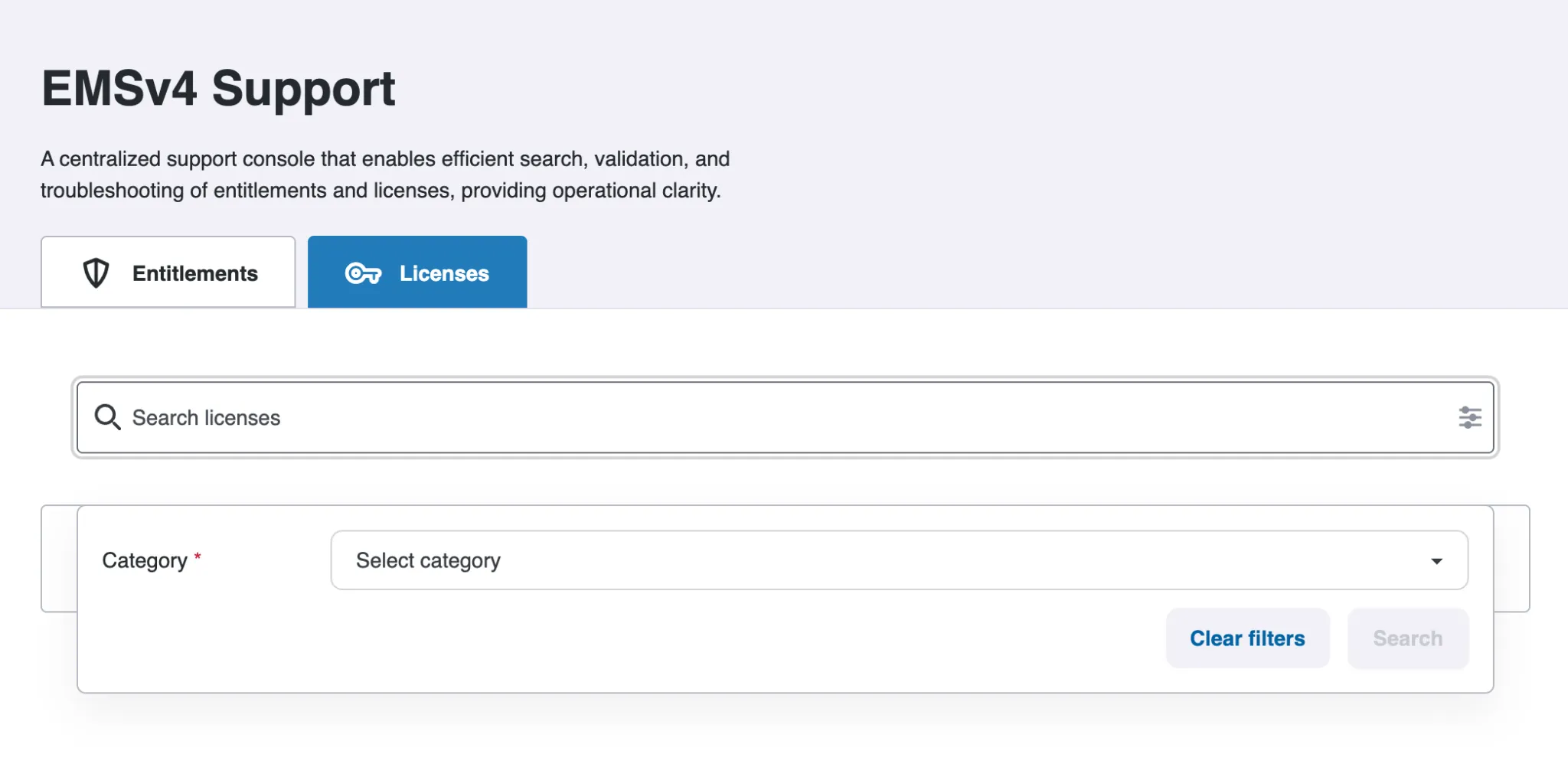
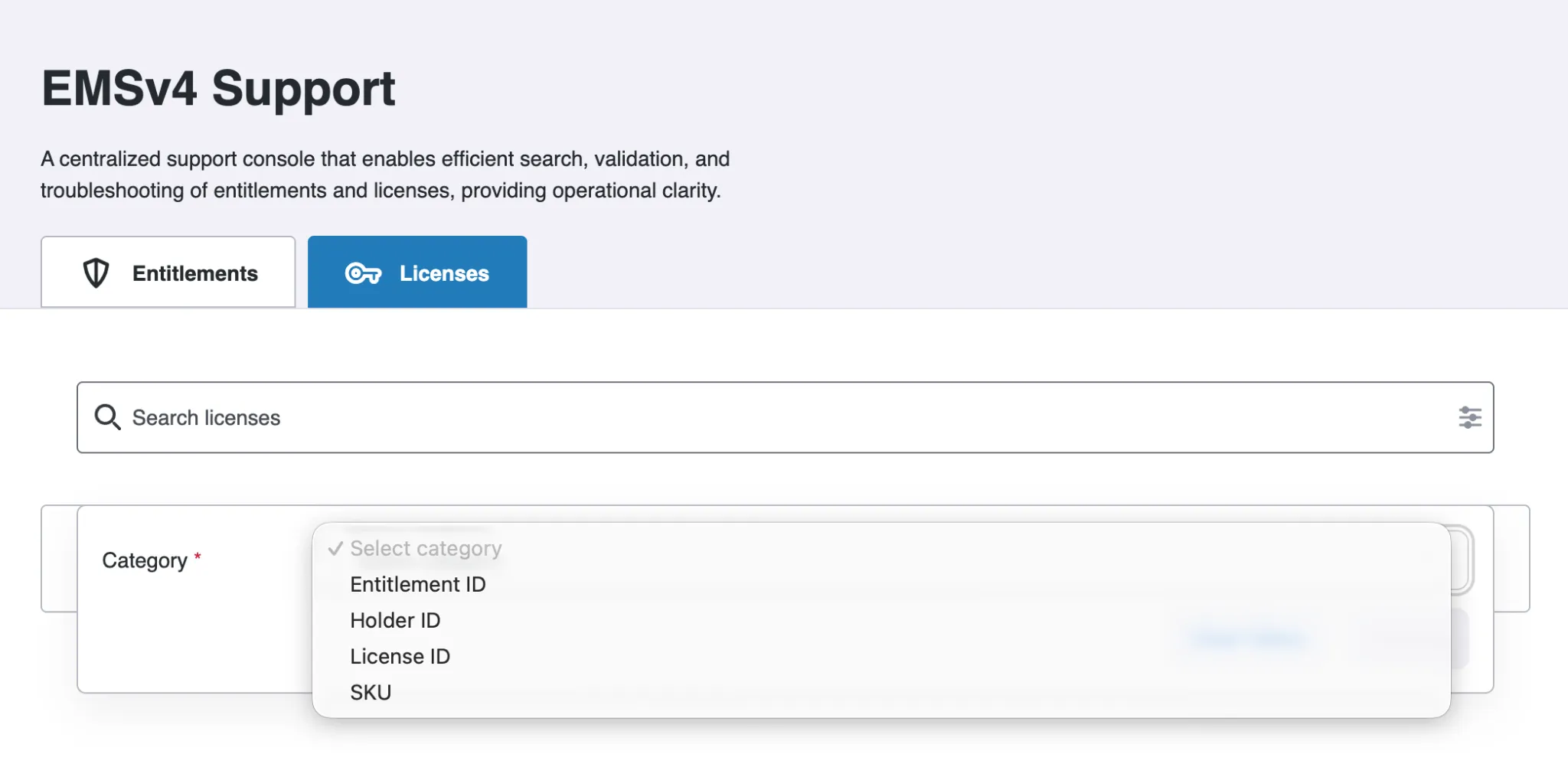
Click inside the Search licenses field to view the Category drop-down.
-
Select the required option from the Category drop-down.
-
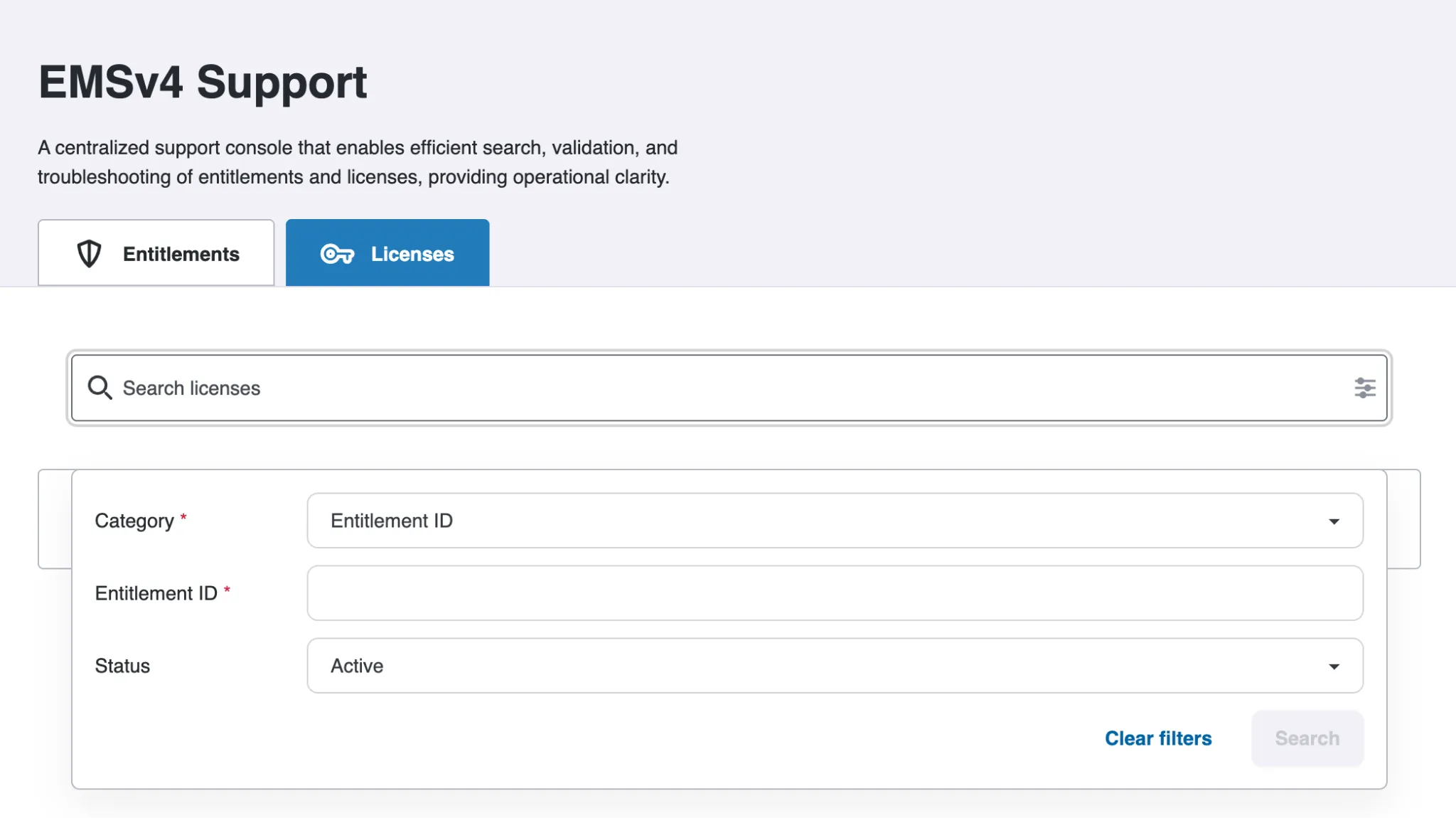
When you select Entitlement ID from the Category drop-down, the following fields are displayed:
Note:
- The Search button will be enabled only when you enter the entitlement ID in the Entitlement ID field.
- Click the Clear filters button to clear all the fields.
-
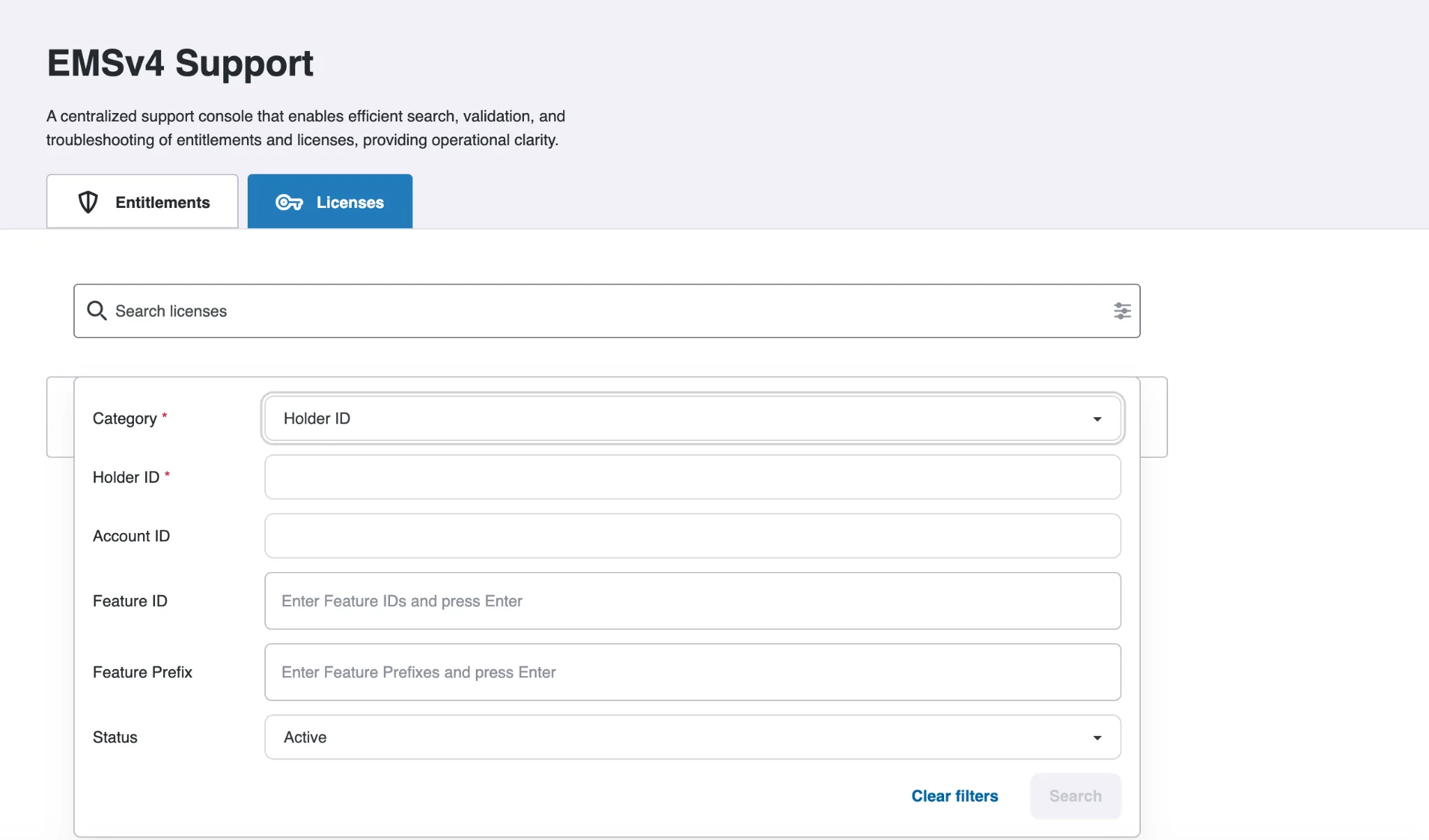
When you select Holder ID from the Category drop-down, the following fields are displayed:
Note:
- The Search button will be enabled only when you enter the required information in all the mandatory fields.
- Click the Clear filters button to clear all the fields.
-
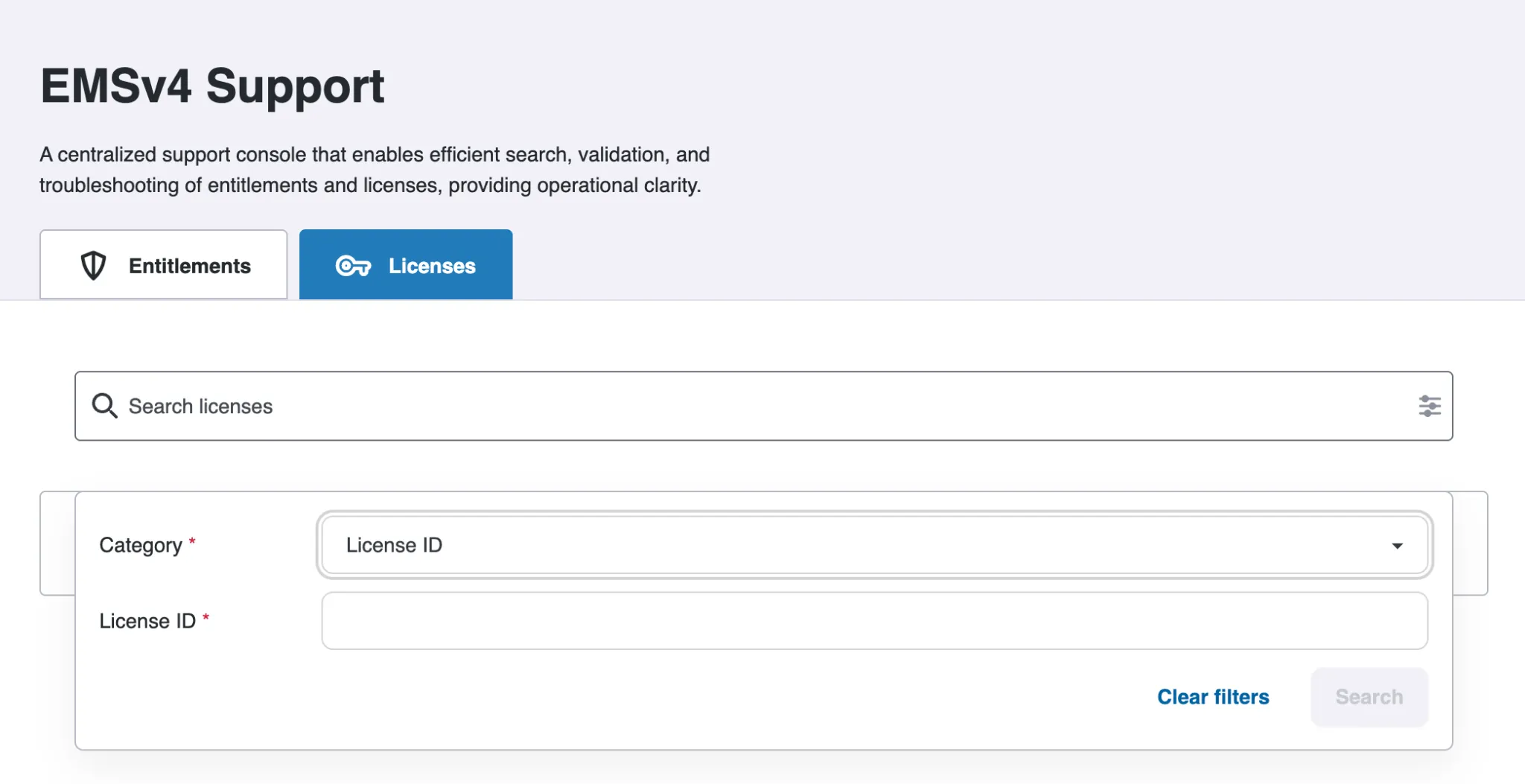
When you select License ID from the Category drop-down, the License ID field is displayed:
Note:
- The Search button will be enabled only when you enter the license ID in the License ID field.
- Click the Clear filters button to clear all the fields.
-
When you select SKU from the Category drop-down, the following fields are displayed:
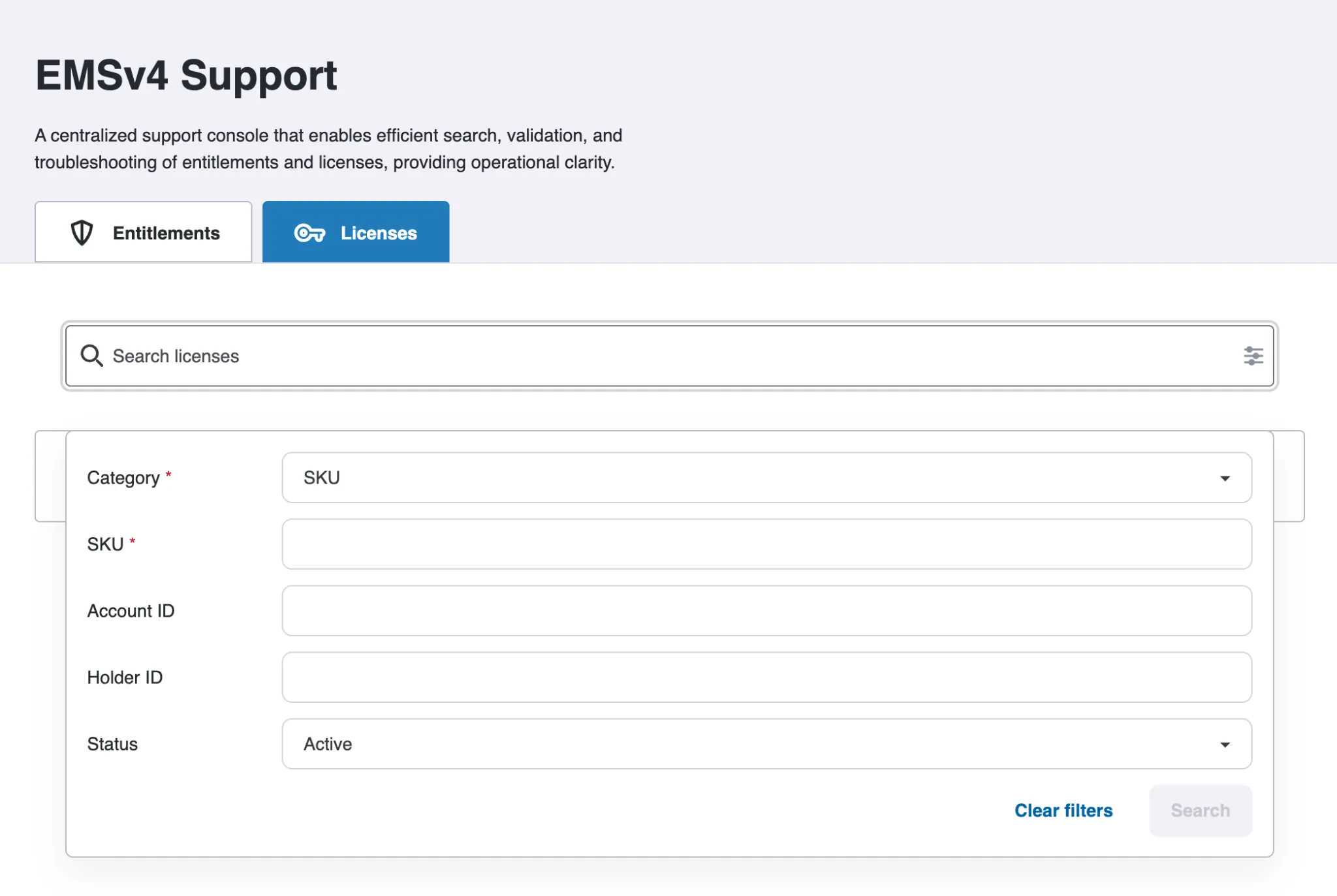
Note:
- The Search button will be enabled only when you enter the required information in all the mandatory fields.
- Click the Clear filters button to clear all the fields.