
Register your application
A application is intended to be used in programmatic workflows or server-to-server communication.
To register your application in Trimble Cloud Console:
-
In the Navigation menu select Applications.
-
In the Applications list page, in the top right corner select + Create New Application
-
The Create New Application dialog window appears.
-
In the Create New Application dialog window, enter the application details:
| Field | Description | | — | — | | Display Name | The name of your application | | Description | Provide a description for your application. | | Grant Types | Provide the grant types for your application. Clicking on ‘Authorization Code Grant’ will request users to provide Callback & Logout Urls.|
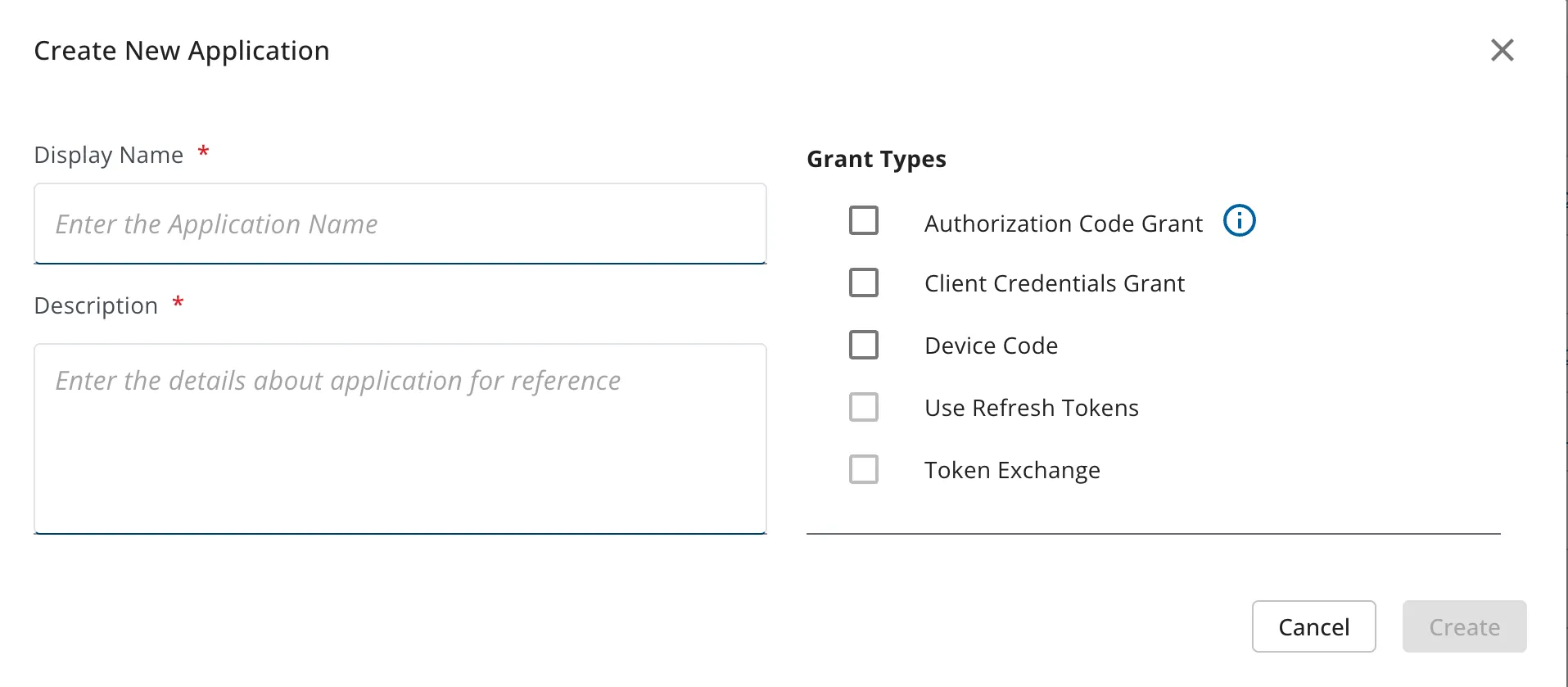
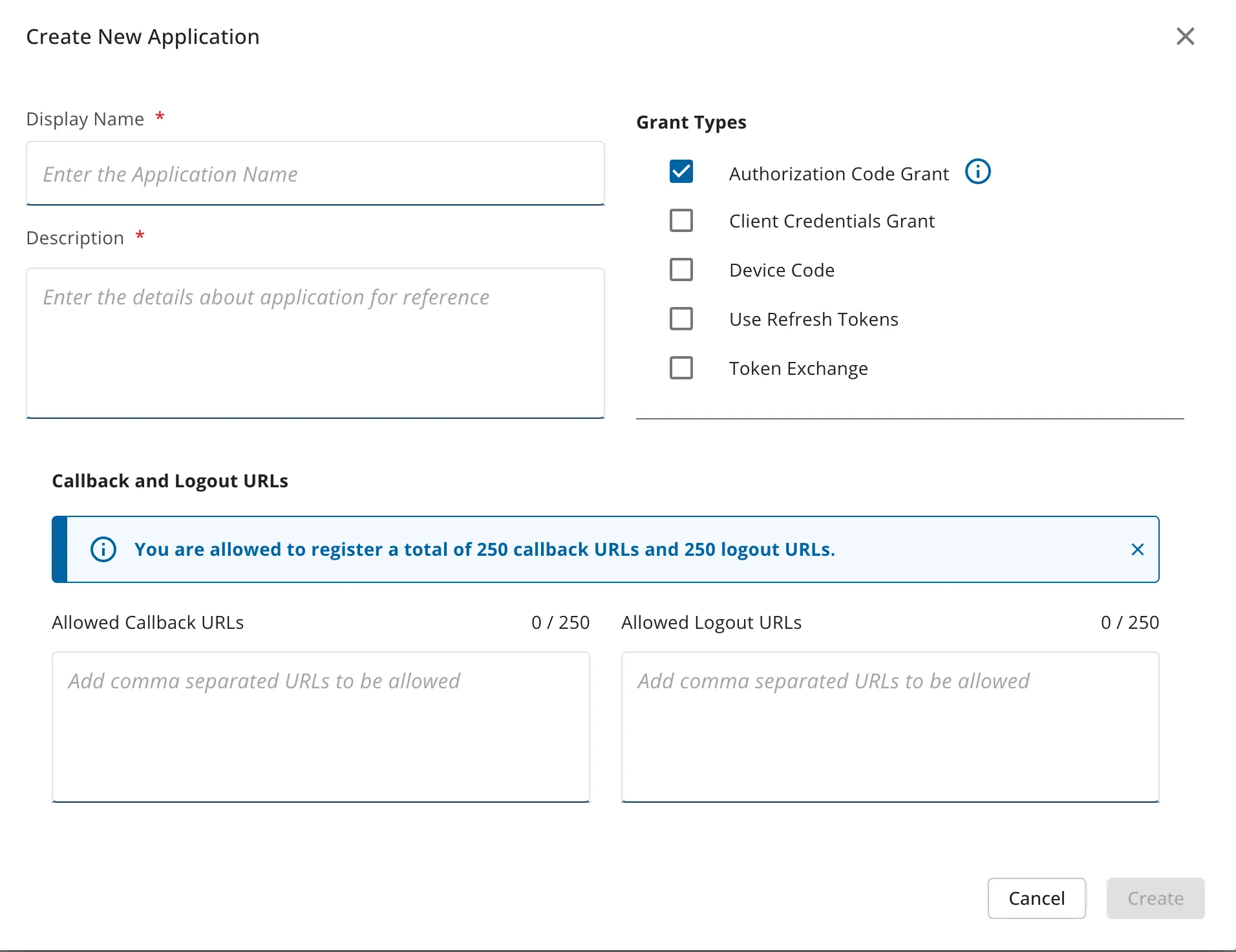
Here’re the list of Grant Types:
| Application Grant Types | Grant Type Description |
|---|---|
| Authorization Code Grant | The Authorization Code grant type is intended to be used by user-facing web applications with a server-side component. When the user grants authorization, the Identity authorization endpoint provides the client with a short-lived authorization code. |
| Client Credentials Grant | The Client Credentials Grant allows clients to obtain an access token outside of the context of a user with a secured environments. |
| Device Code | The Device Code grant type allows input-constrained or no-browser devices to exchange a previously obtained code for an access token. |
| Use Refresh Tokens | A refresh token allows an application to obtain a new access token without prompting the user for specified amount of time. |
| Token Exchange | Sharing of identity and security information in heterogeneous environments or across security domains. |
- After creating the application, user gets navigated to the newly created Application summary page.